
Turn a song, recording or other audio on your Android phone into a sound that is yours. This guide uses Ringtone Maker: MP3 Cutter, developed by UNIQMOB, and its version 2.0 controls.
Watch the updated tutorial
Follow the video to choose audio, trim a selection, save your clip and set your phone sound. The sections below also explain the app’s cut history, effects, output options and saved-clip tools.
1. Choose or record your audio
Tap Pick Audio, then choose Audio Library to find a local sound or Browse Files to select a file. Search, filter or sort the audio library to find what you need. Use audio you own or have permission to edit.
Want a voice or another original sound? Choose Record Voice to make a recording. The source menu also includes Video to Audio for sound from a video stored on your phone.
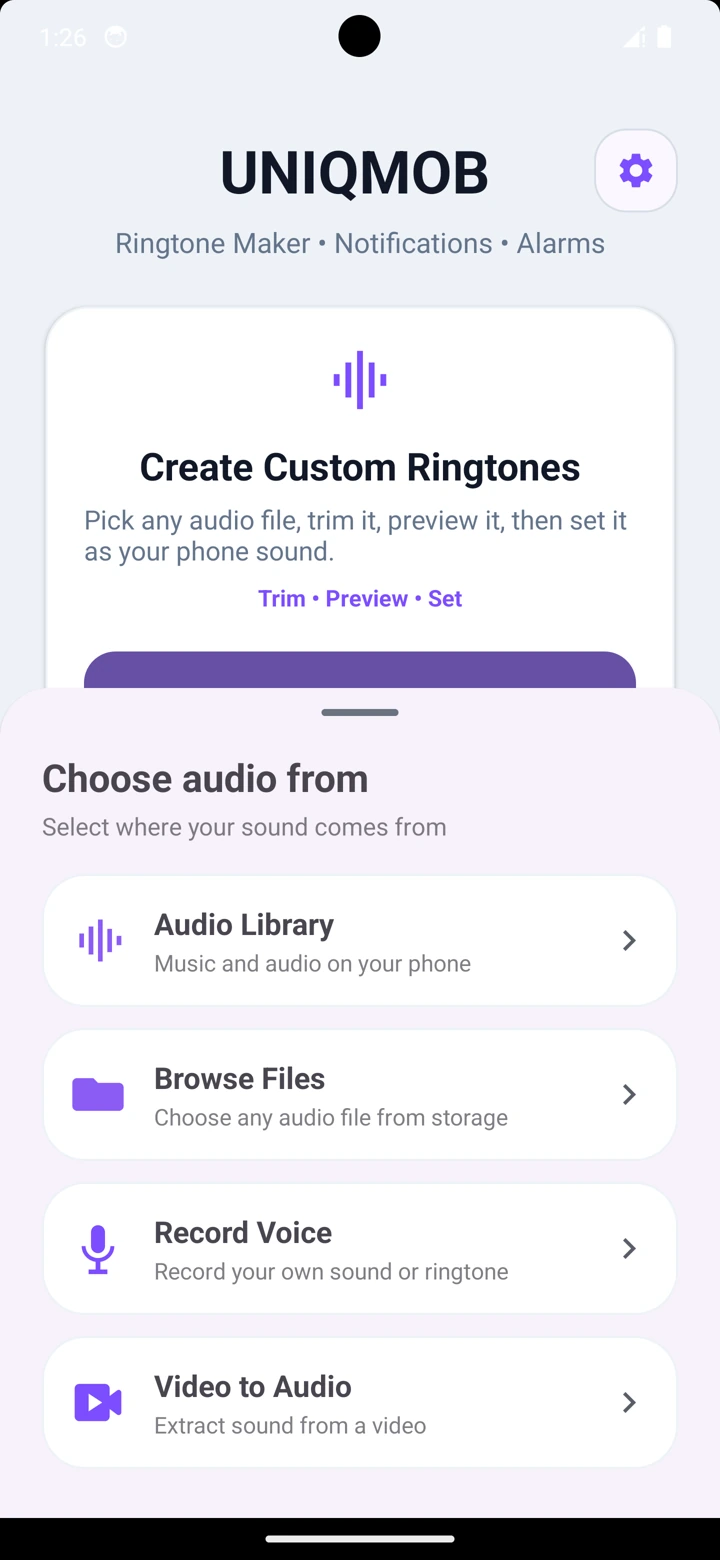
Choose a local file or create a voice recording.
2. Trim with Keep/Remove and Undo/Redo
Move the waveform’s start and end handles around the part you want. Use the plus and minus zoom controls for finer positioning, then tap the play button beneath the waveform to preview your selection. You can save the selection directly.
For extra editing before saving:
- Keep Selected keeps the selected part and removes the rest.
- Remove Selected removes the selected part, useful for cutting out an unwanted section.
- Undo reverses a cut in the current editing session.
- Redo reapplies a cut you undid.
Preview after each cut. Undo/Redo applies to cuts; it does not reset your fade, volume or speed settings. Zoom changes the waveform view, not the sound.
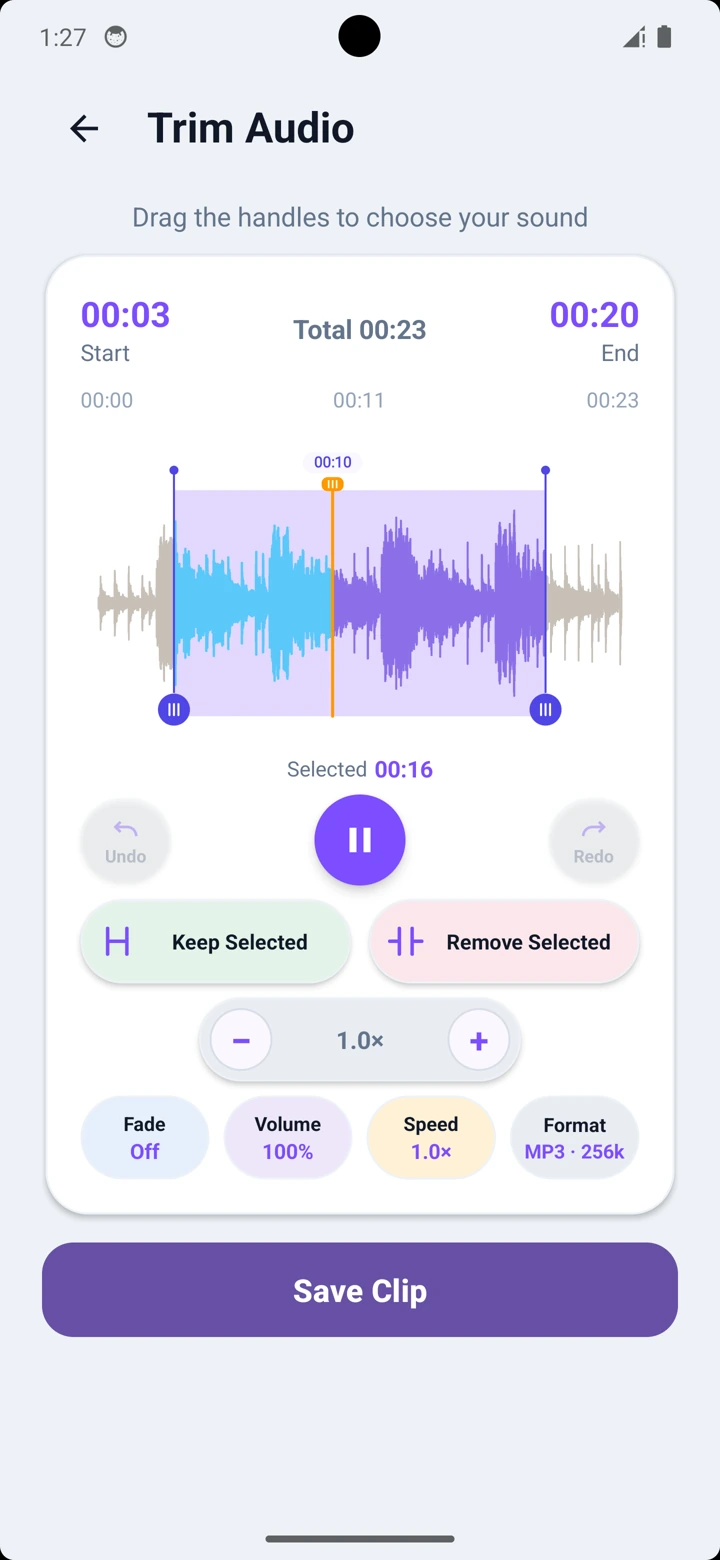
Select precisely, apply optional cuts and preview the result.
3. Adjust fades, volume and speed
- Fade: adjust Fade In for a gentler opening and Fade Out for a smoother ending.
- Volume: boost or reduce the clip’s audio level. Reduce it if the sound becomes harsh or distorted.
- Speed: speed up or slow down the clip, then listen to the result.
These adjustments are optional. A ringtone or alert should remain easy to recognise; preview your changes before saving. Your phone’s sound-volume settings also affect how loudly it plays.
4. Choose format and save
Tap Format to open Output format. Choose MP3, M4A or WAV. MP3 and M4A offer 128, 192 or 256 kbps under Audio quality; WAV has no bitrate selector.
Tap Done, then Save Clip. When Clip Saved appears, use Preview to check the saved audio. To give it a useful name, tap Rename, enter the name and tap Save. Check the duration, format and file size shown for the saved clip.
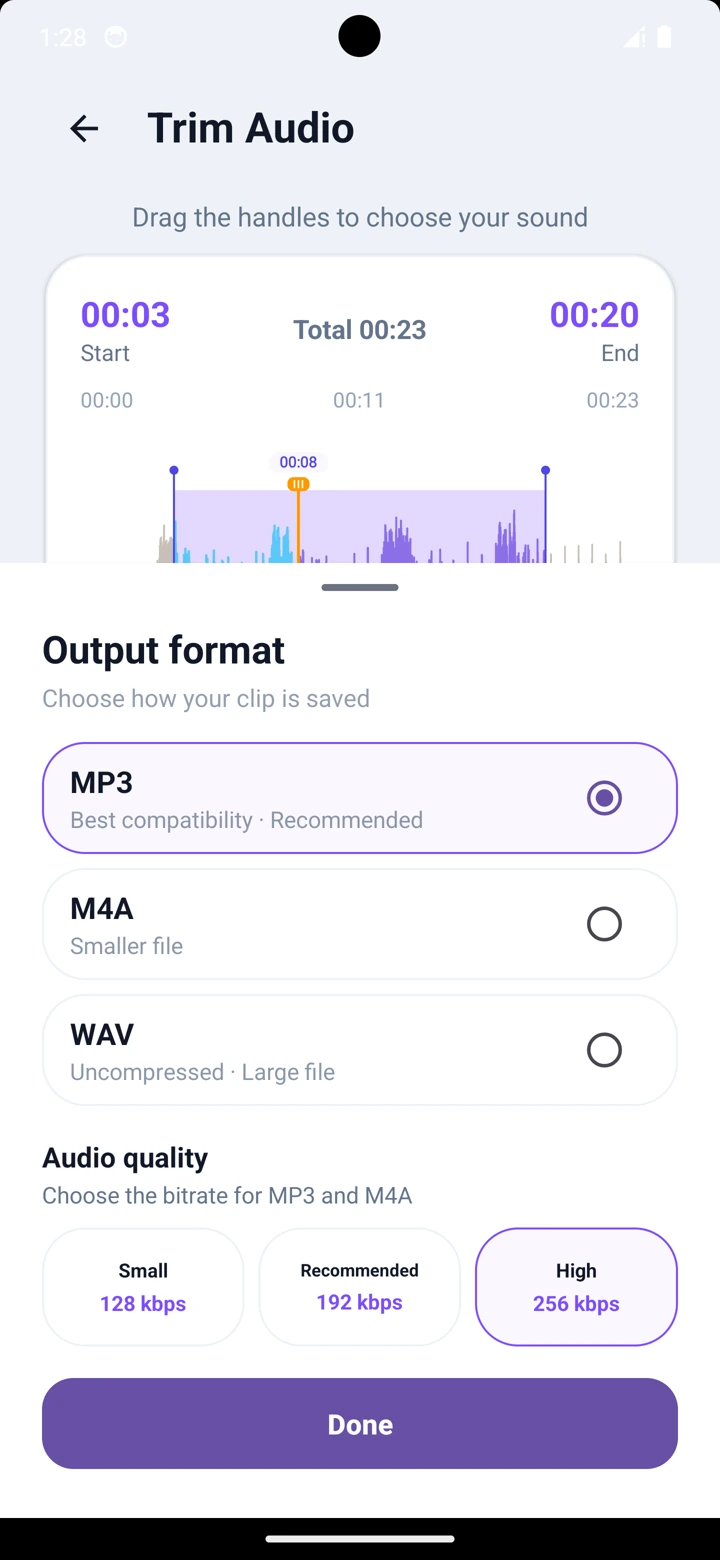
MP3, M4A or WAV; bitrate choices apply to MP3 and M4A.
5. Set your phone sound
On Clip Saved, choose Set as Ringtone for calls. Saved-clip actions also let you choose a notification sound, alarm sound or contact ringtone. Notification is under Other Options.
Complete any Android permission or settings prompts, then check what actually plays with a call or alert. Some apps have their own notification-sound settings. See Android’s sound and volume guidance if the phone still uses another sound.
6. Edit again or create another clip
Open the saved clip’s Edit menu and choose the route that fits your task:
- Fine-tune Current Clip: continue editing the saved sound.
- Start Again from Original: return to the source to rework the existing saved clip; saving replaces that entry.
- Create New Clip from Original: start a separate sound from the source while keeping the saved version.
For a ringtone and a shorter notification sound from the same recording, save the ringtone first. Then choose Edit → Create New Clip from Original, select a brief moment, preview and save it with a different name. Check that both saved clips remain available. If the original audio is unavailable, choose the source file again through Pick Audio.
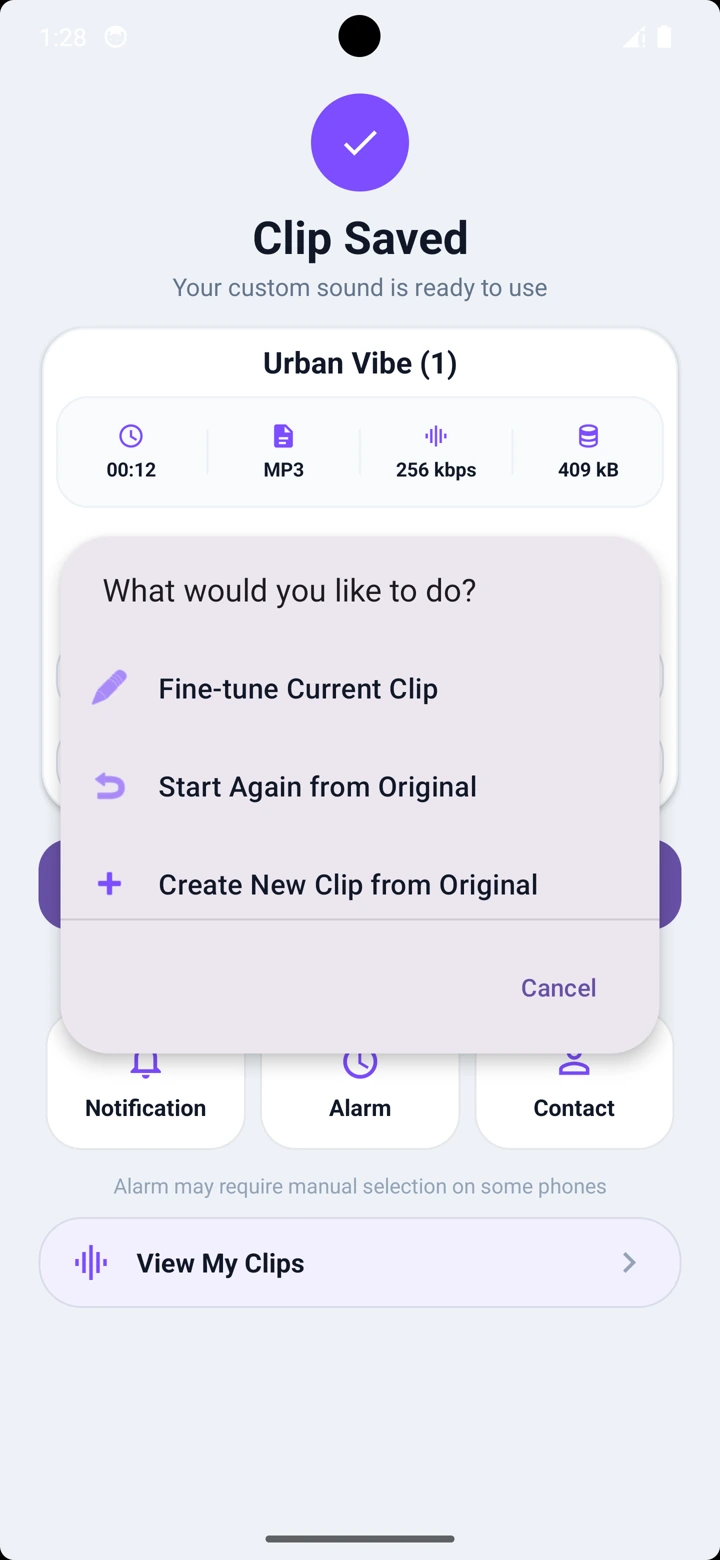
Use Create New Clip from Original for a separate saved sound. Clip names and durations shown are examples.
More tools in Ringtone Maker
- My Clips: find and manage your saved sounds.
- Sharing: send a saved clip to another app through Android sharing.
- Audio Library: search, filter and sort local audio.
- Record Voice: create audio for your own sounds.
- Video to Audio: use sound from a local video as an editing source.
- Appearance and language: choose the app’s light/dark appearance and available app language.
For the full app overview, visit the Ringtone Maker page.
Common questions
Do I have to tap Keep Selected before saving?
No. You can preview and save the selected range directly. Keep Selected and Remove Selected are extra cut tools.
Does Undo reset my effects?
No. Undo/Redo changes cuts in the current editing session; fade, speed and volume settings are separate.
How do I keep my ringtone when making another sound?
Choose Edit → Create New Clip from Original. Start Again from Original reworks the existing saved entry.
Can I export WAV at 256 kbps?
The 128, 192 and 256 kbps choices apply to MP3 and M4A. WAV has no bitrate selector in this output sheet.
Create your next phone sound
Pick your audio, trim and preview it, then save and check it on your phone.
Get Ringtone Maker on Google Play →Need help? Email ringtonemaker@uniqmob.com with your app version, Android version and the step you are trying to complete.