
MP4 to MP3: UNIQMOB FOR IPHONE
Your video.
Your audio.
Video to Audio Converter
Turn the part you love into audio on your iPhone. Choose a video from Photos or Files, trim your moment, then extract, save and share.
Coming soon on the App Store
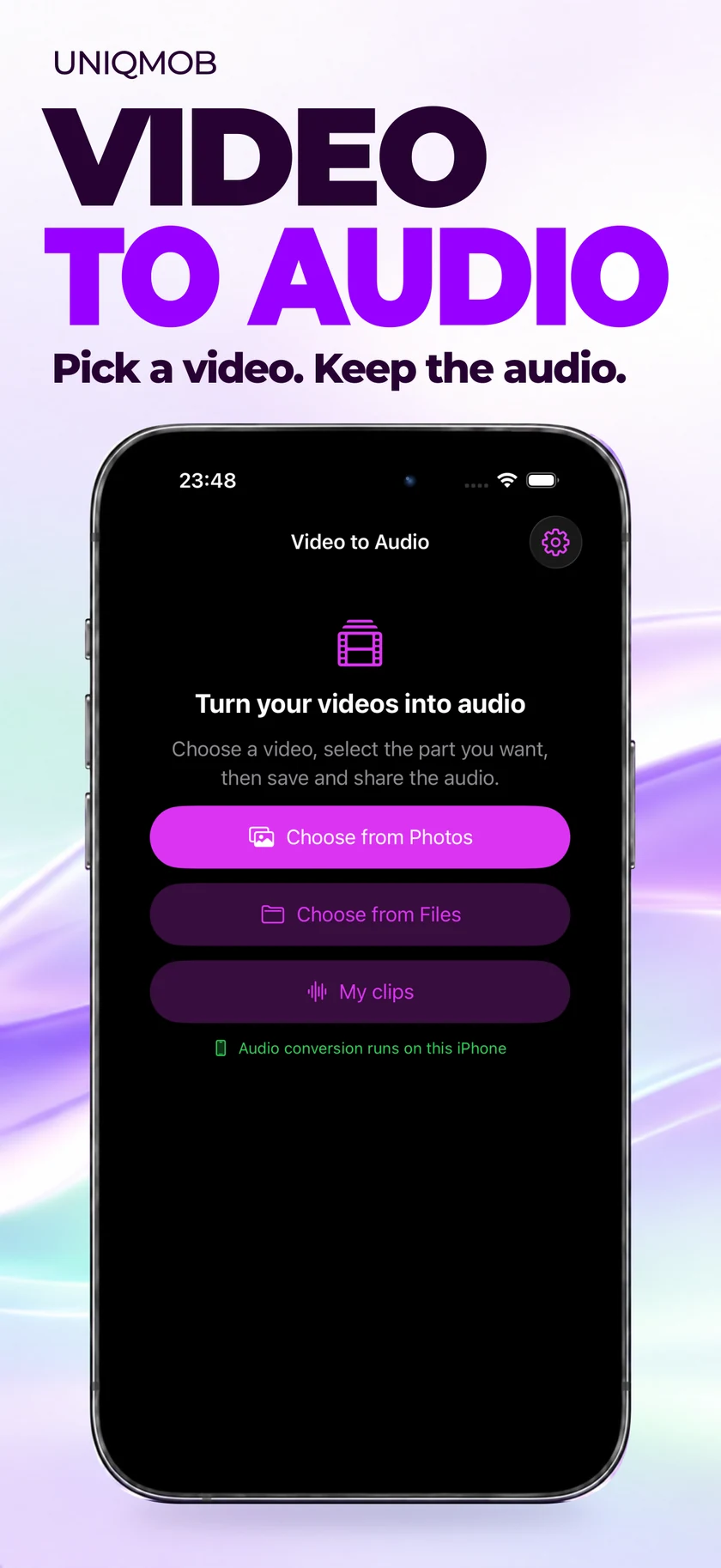
Choose. Trim. Make it audio.
FROM VIDEO TO AUDIO
Three steps.
One useful clip.
Choose video
Import a video from Photos or Files on your iPhone.
Trim and configure
Preview the video, set the start and end, then choose your output settings. Adjust volume and fades as needed.
Extract, save and share
Extract the selected audio, name your clip before saving, then play it, share it or save a copy to Files.
MEET YOUR NEW AUDIO TOOL
A closer look.
From your first video to your saved clips.
Select a screenshot to explore.
KEEP THE PART THAT MATTERS
Small controls.
A personal result.
Save a spoken idea, a favourite moment or a useful audio clip from your own videos. Keep the full track or select just the section you need.
- Preview and trim
- Watch the video and adjust the selected section before extraction.
- Configure your audio
- Choose an output format, channels, sample rate and bitrate. Available settings depend on the selected format.
- Shape the sound
- Adjust the volume and apply fade-in and fade-out for a gentler start and finish.
- Save it your way
- Give the clip a name before saving, listen to it and share it using the iPhone share sheet.
YOUR AUDIO, TOGETHER
Find it.
Play it.
Take it with you.
One home for your saved clips.
My clips keeps your extracted audio together. Search your saved clips, play a result, then share it or save a copy to Files.
Media processing happens locally on your iPhone. You do not need to upload your video to an online conversion service.
Read our Privacy PolicyGOOD TO KNOW
A few answers.
Questions about Video to Audio for iPhone.
Is the iPhone app available yet?
MP4 to MP3: UNIQMOB is coming soon on the App Store. This page will link to the App Store listing when it is available.
Can I convert a video to MP3 on my iPhone?
Yes. Import a compatible video from Photos or Files, choose MP3 in Output settings, select the section you want and extract the audio. Name and save the clip, then play or share it.
Can I extract only part of a video?
Yes. Use the start and end handles to select a section, and preview your selection before extracting.
Can I change volume and add fades?
Yes. Output settings includes volume, fade-in and fade-out controls. You can also choose the audio format and the channel, sample rate and bitrate options available for that format.
Where do I find my saved audio?
Open My clips in the app to search and play your saved clips. Use Share / Save to Files to share audio or save a copy in the Files app.
Are my videos uploaded for conversion?
No upload to a conversion service is needed. The app processes your media locally on your iPhone. For information about advertising, optional reporting and other app data, read the Privacy Policy.
Is there an Android version?
Yes. Visit our separate Video to Audio for Android page for its features and Google Play link.
UNIQMOB APP SUPPORT
Need a hand?
For help with MP4 to MP3: UNIQMOB on iPhone, contact our team. Include your iPhone model, iOS version, app version and a short description of what happened.
Email app supportHelpful links
Frequently asked questions Privacy Policy iOS codec sources & licences ZIPVideo to Audio for AndroidFor privacy requests, email privacy@uniqmob.com.