
How to make a ringtone from a saved video
To turn a video into a ringtone, extract its audio, trim the part you want to hear, save the clip and set it as your phone’s ringtone. You do not need to keep the entire soundtrack.
This guide uses Ringtone Maker: MP3 Cutter, our Android app. UNIQMOB develops the app, so this is a walkthrough of our own product.
Before you start
- Have a video saved on your phone that contains the sound you want.
- Play the original video first to check that the sound is audible.
- Use your own recording, or audio you have permission to reuse.
- Install Ringtone Maker: MP3 Cutter from its Google Play listing.
This guide starts with a video file on your device. A YouTube or social-media link is not the same as a local video file.
Turn video into a ringtone in five steps
01 / CHOOSEOpen Video to Audio
Open Ringtone Maker and tap Pick Audio. In the audio-source choices, select Video to Audio, then choose the video from your phone. Allow the file access needed to select it if Android asks.
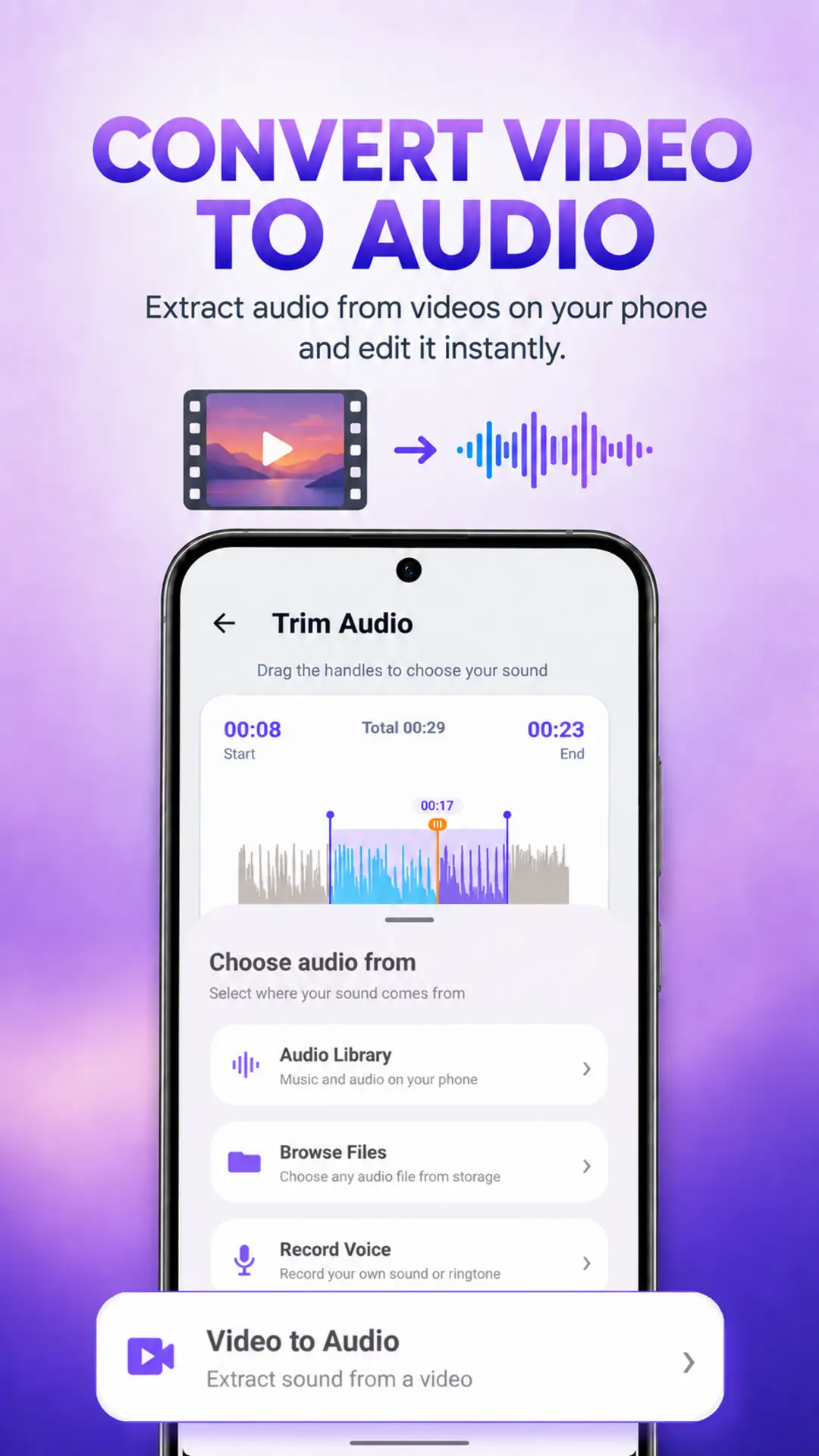
The Video to Audio option extracts sound from a video. This image is from our app’s promotional materials; appearance can vary by version and theme.
02 / EXTRACTBring the sound into the editor
Let the app extract the video’s audio and open it in the waveform editor. A waveform is a visual representation of the sound over time. Preview the audio to find the section you want.
For example, if your video contains a short guitar phrase, listen for where the phrase begins and ends before moving the selection handles.
03 / TRIMChoose a clean beginning and ending
Move the start and end handles around the sound you want to keep. Preview the selection and adjust it until the clip starts promptly and ends where you expect.
For a first attempt, try a short, recognisable section of around 15–30 seconds. That is an editing suggestion, not a required Android ringtone length.
If the cut sounds abrupt, try a short fade at the start or end. Listen again after making changes. Keep enough of the opening sound to notice an incoming call.
Optional: adjust zoom, fades, speed and volume
Before saving, use the editor’s controls to refine your clip. You do not need to adjust every setting.
- Zoom: enlarge the waveform to position the start and end handles more precisely. Zoom changes the view, not the sound.
- Fade in: make the beginning gradually louder for a softer start. Preview it to make sure the opening is still easy to hear.
- Fade out: lower the sound gradually at the end for a smoother finish.
- Speed: adjust how quickly the audio plays, then preview the result to check that it sounds the way you want.
- Volume: adjust the clip’s audio level. Listen for harsh or distorted sound and reduce the level if needed. Your phone’s ringtone-volume setting also affects how loud an incoming call sounds.
These adjustments are optional. Preview your clip after making changes, then save when you are happy with the result.
04 / SAVESave a clearly named clip
Save the trimmed audio with a name you will recognise, such as “Guitar call tone”. Wait for the app to confirm that saving has finished before leaving the editor.
Keep the original video until you have checked the saved clip. You can use it again if you decide to make a different selection.
05 / SETSet the saved clip as your ringtone
From the saved clip’s available actions, choose the ringtone option. If Android opens a permission screen for changing system settings, grant that permission to Ringtone Maker to complete the action, then return to the app.
Finally, check the ringtone in your phone’s sound settings and preview it. Settings names and ringtone choices can differ between phones; dual-SIM phones may let you choose a separate tone for each SIM.
Watch: video to audio on Android
Follow the video-to-audio workflow in this short demonstration.
If something goes wrong
The video is missing from the picker
Check that the file is actually downloaded to your phone rather than available only inside a cloud or streaming app. Locate it in your phone’s file manager, then try selecting it again.
The extracted audio is silent
Play the original video with media volume turned up. If the original is silent, there may be no usable soundtrack to extract. If it plays normally but extraction fails, try another local video; the original file or its audio encoding may not be supported.
The clip will not save
Check available storage and any permission request shown by Android. Try saving a short clip from another file. If that works, the problem may be specific to the original video.
The phone still uses the old ringtone
Preview the saved clip, repeat the ringtone-setting action and check the phone’s ringtone settings. Also check whether the caller has a separate contact ringtone or whether you changed the ringtone for a different SIM.
Need help? Email ringtonemaker@uniqmob.com with your phone model, Android version, app version and the error shown. You do not need to send a private video to describe the issue.
Common questions
Can I use a video recorded with my phone?
Yes, a local recording with a supported audio track is a suitable starting point. Preview it first to make sure it contains the sound you want.
Do I need to convert the whole video into my ringtone?
No. After extracting the sound, use the editor to select and save only the section you want.
Can I use the clip as an alarm or notification?
Ringtone Maker also provides alarm and notification actions for saved clips. Preview your selection and use the action for the type of sound you want to change.
Will this download music from YouTube?
This walkthrough covers videos already saved on your device. It does not describe downloading from streaming services or removing copy protection.
Make a sound your own.
Extract, trim and save your next ringtone with Ringtone Maker: MP3 Cutter.
View on Google Play →